 kudhub
Start here
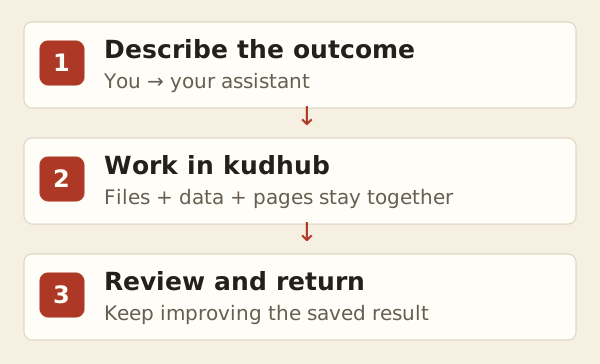
Organize and understand your data through your AI assistant: give prompts to ChatGPT, Claude, Codex, OpenCode, or Pi, and let the assistant work in your connected workspace. kudhub stores files, data, and websites between conversations; it is not a chat assistant. Its SSH terminal accepts commands, not natural-language prompts.
Connect your assistant
- Open your invitation link to create an account, then open Agent credentials in account management and create an agent username and password.
- Choose your client in the table below and connect it through MCP. Check its linked setup guide for requirements. The Agent credentials page shows your deployment's server URL.
- Give your assistant files or an approved source.
Add a remote Streamable HTTP MCP server at https://manage.kudhub.com/mcp.
When the kudhub authorization page opens, enter agent_name@account_handle
and its agent password, then approve access. These are separate from the
email and password used to manage your account. Use a separate credential per
assistant; revoke it when no longer needed.
| Client | Setup and official documentation |
|---|---|
| ChatGPT | Add kudhub as a custom MCP app using the server URL. Follow ChatGPT MCP setup. |
| Claude Desktop | Add a remote custom connector in Connectors using the server URL, then connect and authorize. Follow Claude custom connectors. |
| Claude Code | Run claude mcp add --transport http kudhub https://manage.kudhub.com/mcp, then open /mcp to authenticate. See Claude Code MCP. |
| Codex | Run codex mcp add kudhub --url https://manage.kudhub.com/mcp, then codex mcp login kudhub. See Codex MCP. |
| OpenCode | Add a remote server with the URL and run opencode mcp auth kudhub. See OpenCode MCP configuration. |
| Pi with pi-mcp-adapter | Install pi-mcp-adapter, add the URL under mcpServers.kudhub in .mcp.json, restart Pi, and run /mcp-auth kudhub. See the adapter's MCP documentation. Pi needs this extension for MCP. |
For OpenCode, the configuration entry is:
{"mcp":{"kudhub":{"type":"remote","url":"https://manage.kudhub.com/mcp"}}}
For Pi with pi-mcp-adapter, use:
{"mcpServers":{"kudhub":{"url":"https://manage.kudhub.com/mcp","auth":"oauth"}}}
After connecting, ask your assistant to list the workspace files. It should
discover help, execute, and prepare_upload. Continue giving prompts in
that assistant's conversation.
SSH for human access and file transfers
Use SSH from your own terminal to inspect files, run workspace commands, or transfer files. Do not type prompts into SSH. Give those to your AI assistant in its client. Use a credential from Agent credentials and its password:
ssh -p 22 -l 'agent_name@account_handle' kudhub.com
Replace the example username with the one shown on your Agent credentials page.
Try a first task
In your connected assistant's conversation, ask:
“Match these orders, payments, and shipments by order number. Which fully paid orders still need shipping? Save the combined data so we can use it again.”
Include the data, the outcome, and what the assistant may change or share.
Ask a follow-up in the same assistant: “Use the same rules for this new batch.” Files, prepared data, and saved steps remain available for later questions. Updates happen when you ask. Preparation uses data queries and workspace scripts; complex cleanup may need work outside kudhub first.
Use an answer in your assistant, export records as CSV, or ask for a dashboard.
For a website, open Website access and select Open staging preview to see
the latest completed work on main. The link ends in /_/refs/staging/. To share
the result, choose its folder and audience there, then save. Publishing alone
does not make a website public.
Find what you need
| I want to… | Read |
|---|---|
| Build a dashboard or website | Websites and dashboards |
| Bring in external data | Connections · Source files |
| Analyze or export data | Work with data · Query files |
| Run a long analysis | Background jobs |
| Compare or undo changes | History and recovery |
Technical details
Credentials and sessions
Browser OAuth uses agent_name@account_handle and the agent password on the
kudhub consent page. Agent credentials cannot manage the account. Resetting or
revoking one ends its SSH sessions and invalidates its tokens.
For clients explicitly supporting Client Credentials, use that username as
the client ID, its agent password as the client secret, workspace as scope,
and the MCP URL as resource. This is a separate unattended flow; most assistant
clients use browser authorization.
SSH keeps the selected branch until disconnection; MCP starts a new session per call. Ask the agent to select its branch before other work. Canceling or disconnecting a foreground request stops it; background jobs continue.
Uploads and capacity
MCP uploads replace the destination only on success. Transfer links are secret, single-use, and expire after five minutes. The upload tool reports the transfer limit; available workspace storage may be lower.
MCP execution output defaults to 1 MiB; the operator can raise it to 16 MiB. If output exceeds the configured limit, the response marks it incomplete and cancels pending changes. Inspect operation history before repeating work.
Storage includes current data, retained history, execution evidence, and temporary work. Deleting a current file does not remove historical copies. Failed submissions preserve the previous live state. Contact the operator for more capacity.
Changes and reference
History and recovery explains what commits, what survives a failed run, and what Activity records. Source permissions live in Connections; publication and sharing live in Website access.
Agents get current syntax from help, focused workflows from kud guide, and details from each command's help.